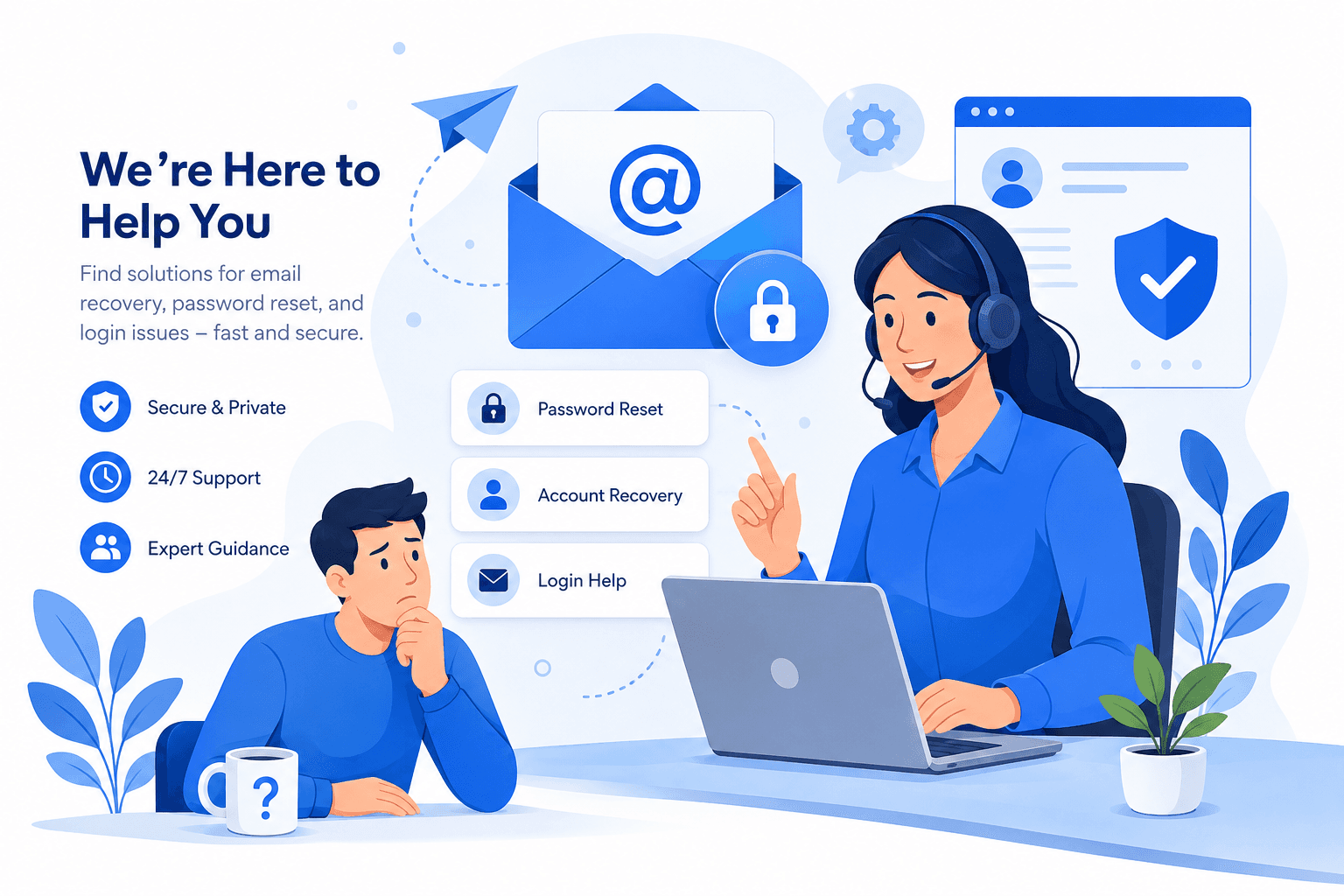
Introduction: Why You May Need to Reset Your Mail Password
Email has become one of the most important parts of our digital lives. It gives us access to banking services, shopping websites, social media accounts, work platforms, subscriptions, and many other online services. Because so many accounts depend on a single email address, protecting it should always be a priority.
There are many situations where you may need to reset your mail password. You might forget your password, notice unfamiliar login activity, receive notifications about attempted sign-ins, or simply decide to strengthen your account security by choosing a stronger password.
Resetting your password is not only about restoring access to your mailbox. It also helps protect your personal information, prevents unauthorized access, and reduces the risk of someone misusing your account.
This guide explains how to reset your mail password step by step, how the account recovery process works, how to create a secure password, and the best practices for keeping your email account protected in the future.
Understanding When You Should Reset Your Mail Password
Every email user may eventually need to reset their password. Whether you have forgotten your password or want to improve your account security, understanding when a password reset is necessary helps keep your mailbox secure.
Common Reasons for Resetting an Email Password
Forgetting your password is the most common reason people reset their email password. However, there are several other situations where updating your password is recommended.
- You forgot your current password.
- You cannot sign in to your account.
- You noticed suspicious login attempts.
- Your password may have been exposed in a data breach.
- You want to replace an old password with a stronger one.
- You no longer remember the password saved on another device.
Signs Your Email Account May Be Compromised
Sometimes your mailbox may show warning signs that indicate someone else has accessed your account. Identifying these signs early can help you secure your email before additional problems occur.
- Emails are sent without your permission.
- Password reset emails arrive unexpectedly.
- Recovery information changes without your knowledge.
- Unknown devices appear in your recent login activity.
- Important emails disappear from your inbox.
- Your account settings change unexpectedly.
Step-by-Step Guide to Reset Your Mail Password
Although different email providers have slightly different interfaces, the overall password recovery process is very similar. Following the correct steps helps you regain access safely while protecting your account from unauthorized access.
Step 1: Visit the Official Email Login Page
The first step is to visit your email provider's official sign-in page. Look for options such as 'Forgot Password', 'Reset Password', or 'Account Recovery'. Selecting one of these options starts the password reset process.
Always access the official website of your email provider. Avoid clicking password reset links received from unknown emails or unofficial websites, as these may be phishing attempts designed to steal your account information.
- Forgot Password
- Reset Password
- Account Recovery
- Can't access your account
Step 2: Verify Your Identity
Before allowing you to create a new password, your email provider needs to verify that you are the legitimate owner of the account. This security step prevents unauthorized people from gaining access to your mailbox.
The verification method depends on the recovery information associated with your account. If your recovery phone number or backup email address is current, the process is usually quick and straightforward.
- Verification code sent by SMS.
- Verification email sent to your recovery email address.
- Authentication app confirmation.
- Security questions, if previously configured.
- Verification using trusted devices.
Step 3: Create a Strong New Password
Once your identity has been verified, you will be asked to create a new password. This is one of the most important steps because a strong password significantly improves the security of your email account.
Avoid using passwords that are easy to guess or passwords that you already use on other websites. A unique password helps reduce the risk of unauthorized access.
- Use at least 12 characters.
- Include uppercase and lowercase letters.
- Include numbers.
- Include special characters.
- Avoid names, birthdays, and personal information.
- Never reuse passwords from other accounts.
Example of a Strong Password
Instead of using a simple password like 'John12345', consider creating a longer passphrase that combines unrelated words, numbers, and symbols. Longer passwords are generally easier to remember and much harder to guess.
- Weak Password: John12345
- Strong Password: BlueRiver!Cloud92Morning
Resetting Passwords for Popular Mail Services
Most major email providers follow a similar recovery process, although the screens and wording may differ slightly. Understanding these general steps can help you navigate the password reset process more easily.
Resetting a Gmail Password
Gmail users can recover their accounts through Google's official account recovery process. After selecting the password recovery option, Google guides users through one or more identity verification steps before allowing a new password to be created.
- Open the Google sign-in page.
- Select 'Forgot Password'.
- Complete identity verification.
- Create a new password.
- Sign in using your updated password.
Resetting an Outlook or Hotmail Password
Microsoft Outlook and Hotmail accounts use Microsoft's secure account recovery system. Users are typically asked to verify their identity before creating a new password.
- Visit the Microsoft sign-in page.
- Choose 'Forgot Password'.
- Select a verification method.
- Enter the security code.
- Create a new password.
Resetting a Yahoo Mail Password
Yahoo Mail also provides a simple password recovery process. Users confirm their identity using available recovery methods before choosing a new password.
- Open Yahoo's login page.
- Choose the password recovery option.
- Verify your identity.
- Create a strong password.
- Sign in with the updated password.
What to Do If Password Recovery Fails
In some situations, users may be unable to complete the recovery process because they no longer have access to their recovery phone number or backup email address. Carefully reviewing the available recovery options often helps resolve the issue.
- Check that your recovery email address is correct.
- Confirm your recovery phone number is still active.
- Try signing in from a trusted device.
- Use another available verification method.
- Avoid making repeated unsuccessful attempts.
Best Practices for Creating a Strong Mail Password
Creating a strong password is one of the easiest and most effective ways to protect your email account. Since your mailbox often serves as the recovery account for many other online services, a secure password helps protect much more than just your emails.
A well-designed password should be difficult to guess while remaining easy for you to remember. Using a password manager can also help generate and securely store unique passwords for every account.
Characteristics of a Secure Email Password
A secure password combines length, uniqueness, and complexity. Rather than relying on a single word, consider using a passphrase that combines several unrelated words with numbers and symbols.
- Use at least 12 to 16 characters.
- Mix uppercase and lowercase letters.
- Include numbers and special characters.
- Avoid dictionary words when used alone.
- Create a unique password for every account.
- Consider using a password manager.
Password Mistakes You Should Avoid
Many security incidents occur because users unknowingly create weak passwords or reuse the same password across multiple websites. Avoiding these common mistakes greatly improves your account security.
- Using '123456' or 'password'.
- Including your name or birthday.
- Reusing the same password everywhere.
- Sharing your password with others.
- Saving passwords on public computers.
- Writing passwords in unsecured places.
Improve Email Security After Resetting Your Password
Resetting your password is only one part of protecting your account. Taking additional security measures helps reduce the likelihood of future unauthorized access.
Enable Two-Factor Authentication (2FA)
Two-Factor Authentication adds another layer of security by requiring a second verification step after entering your password. Even if someone learns your password, they usually cannot access your account without the additional verification.
- Verification codes sent by SMS.
- Authentication apps.
- Hardware security keys.
- Trusted device approval.
Update Your Recovery Information
Review your recovery settings after changing your password. Keeping this information current makes future account recovery much easier.
- Verify your recovery phone number.
- Confirm your backup email address.
- Remove outdated recovery options.
- Review trusted devices connected to your account.
Common Password Reset Problems
Although most password resets are completed within a few minutes, some users experience temporary difficulties during the recovery process.
Verification Code Not Received
If you do not receive a verification code, first check your spam folder if the code is being sent by email. If the code is sent by SMS, ensure your phone has network coverage and that your recovery phone number is correct.
- Check your spam folder.
- Wait a few minutes before requesting another code.
- Confirm your recovery information.
- Try another available recovery method.
Account Temporarily Locked
Too many unsuccessful login attempts may temporarily lock your account as a security precaution. Wait for the recommended time before attempting to sign in again.
Password Reset Link Expired
Password reset links often expire after a short period for security reasons. If your link is no longer valid, request a new password reset email from the official login page.
Conclusion
Resetting your mail password is an important step in protecting your digital identity. Whether you forgot your password or simply wanted to improve your account security, following the correct recovery process helps you regain access safely.
After creating a new password, strengthen your account further by enabling Two-Factor Authentication, updating your recovery information, reviewing connected devices, and monitoring account activity regularly. These simple habits significantly reduce the likelihood of unauthorized access and help keep your email account secure over time.