Introduction
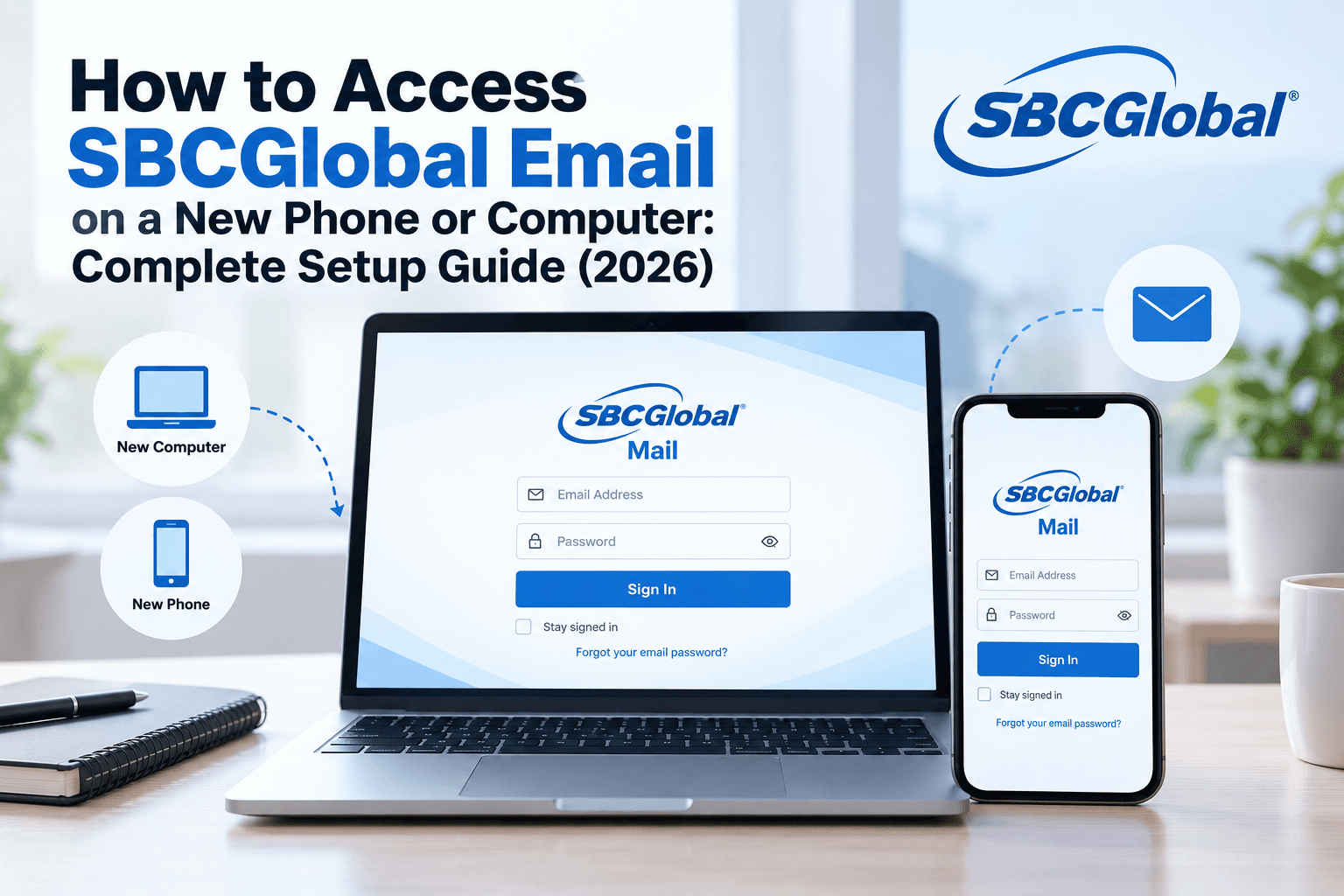
Changing your phone or computer should make your digital life easier, but sometimes it creates unexpected problems — especially when you try to access an older email account like SBCGlobal.
Many users find themselves asking:
How do I access my SBCGlobal email on my new phone?
Why is my SBCGlobal email not syncing after changing devices?
What settings do I need for SBCGlobal email in Outlook or mobile apps?
The good news is that you can continue using your SBCGlobal email account on a new device by setting it up correctly. Most problems happen because saved passwords, email settings, or server configurations do not automatically move to your new device.
In this guide, we will explain how to set up SBCGlobal email on iPhone, Android, Outlook, and other email applications, along with common issues and solutions.
Can You Still Access SBCGlobal Email in 2026?
Yes, existing SBCGlobal.net email users can still access their accounts through the AT&T email system.
Many older SBCGlobal users face confusion because the original SBCGlobal email service has changed over the years. However, existing email addresses can continue working when the correct login details and mail settings are used.
Before setting up your account on a new device, make sure you have:
- Your complete SBCGlobal email address
- Your current password
- Access to recovery information
If you have forgotten your password, first recover your account using our guide:
Forgot Your Email Password? A Complete Guide to Recover Your Email Account
How to Set Up SBCGlobal Email on a New Device
When you move to a new phone or computer, your email account needs to be added manually in many cases.
The basic process is:
- Open your email application
- Select "Add Account"
- Choose manual email setup if required
- Enter your SBCGlobal email address
- Add the correct server settings
- Complete verification
SBCGlobal Email Settings You Need for Setup
To connect SBCGlobal email with an email app, you need the correct incoming and outgoing server information.
These settings allow your email application to receive new messages and send outgoing emails properly.
- Server: imap.mail.att.net
- Port: 993
- Security: SSL Enabled
- Server: smtp.mail.att.net
- Port: 465 or 587
- Security: SSL/TLS Enabled
For users who want to understand how outgoing email servers work, you can also read:
SMTP Settings Explained: What They Are and How Email Sending Works
How to Add SBCGlobal Email on iPhone
If you are moving to a new iPhone, follow these steps:
Step 1: Open Mail Settings
Go to: Settings → Mail → Accounts → Add Account
Step 2: Select Email Provider
Choose: Other → Add Mail Account
Step 3: Enter Your Account Details
Add:
- Your name
- SBCGlobal email address
- Password
- Account description
How to Setup SBCGlobal Email on Android
Android users can add SBCGlobal email through the Gmail app or another email application.
Follow these steps:
- Open Gmail app
- Tap your profile icon
- Select Add another account
- Choose Other
- Enter your SBCGlobal email address
- Select IMAP setup
- Enter server information
- Complete the setup
How to Configure SBCGlobal Email in Outlook
Many users prefer Outlook because it allows them to manage professional and personal emails together.
To add SBCGlobal email in Outlook:
- Open Outlook
- Select Add Account
- Enter your SBCGlobal email address
- Choose manual setup if requested
- Select IMAP
- Enter incoming and outgoing server details
- Save your settings
Why Is SBCGlobal Email Not Working After Changing Devices?
Sometimes your account setup may appear complete, but emails still do not work properly.
Common reasons include:
Incorrect Password
A saved password from your old device may not work on the new one.
Solution:
Reset your password and try adding the account again.
You can follow:
Wrong IMAP or SMTP Settings
Incorrect server details can prevent your email app from connecting.
Check:
- Server address
- Port number
- Security settings
Email App Security Issues
Some email applications may block access if they detect unusual activity.
Try:
- Signing in through your browser first
- Updating your password
- Removing and adding the account again
Account Sync Problems
If emails are not updating:
- Check internet connection
- Restart your email app
- Remove and reconnect your account
For more troubleshooting solutions, read:
How to Keep Your SBCGlobal Email Secure on a New Device
When setting up email on a new device, security should be a priority.
Follow these simple steps:
Use a Strong Password
Avoid using:
- Simple words
- Repeated passwords
- Personal information
Update Your Recovery Information
Make sure your recovery email and phone number are current.
Review Connected Devices
Remove access from devices you no longer use.
You can also learn more about protecting your account through:
How to Change Your Email Password Safely: A Step-by-Step Security Guide
Need Help With SBCGlobal Email Access?
Setting up an older email account on a new device can sometimes be confusing, especially when login details, security checks, or server settings create problems.
SBCMailMe provides helpful guidance for SBCGlobal email setup, login, and access-related issues. If you need further assistance, you can reach out at +1 (855) 529-0095.
Final Thoughts
Moving to a new phone or computer does not mean you have to leave your SBCGlobal email behind. By using the correct account details and email settings, you can continue receiving and sending emails without major interruptions. The key is to keep your login information updated, use secure passwords, and configure your email application correctly. Whether you are setting up SBCGlobal email for the first time on a new device or fixing an existing connection problem, following the right steps can make the process simple and stress-free.