Introduction
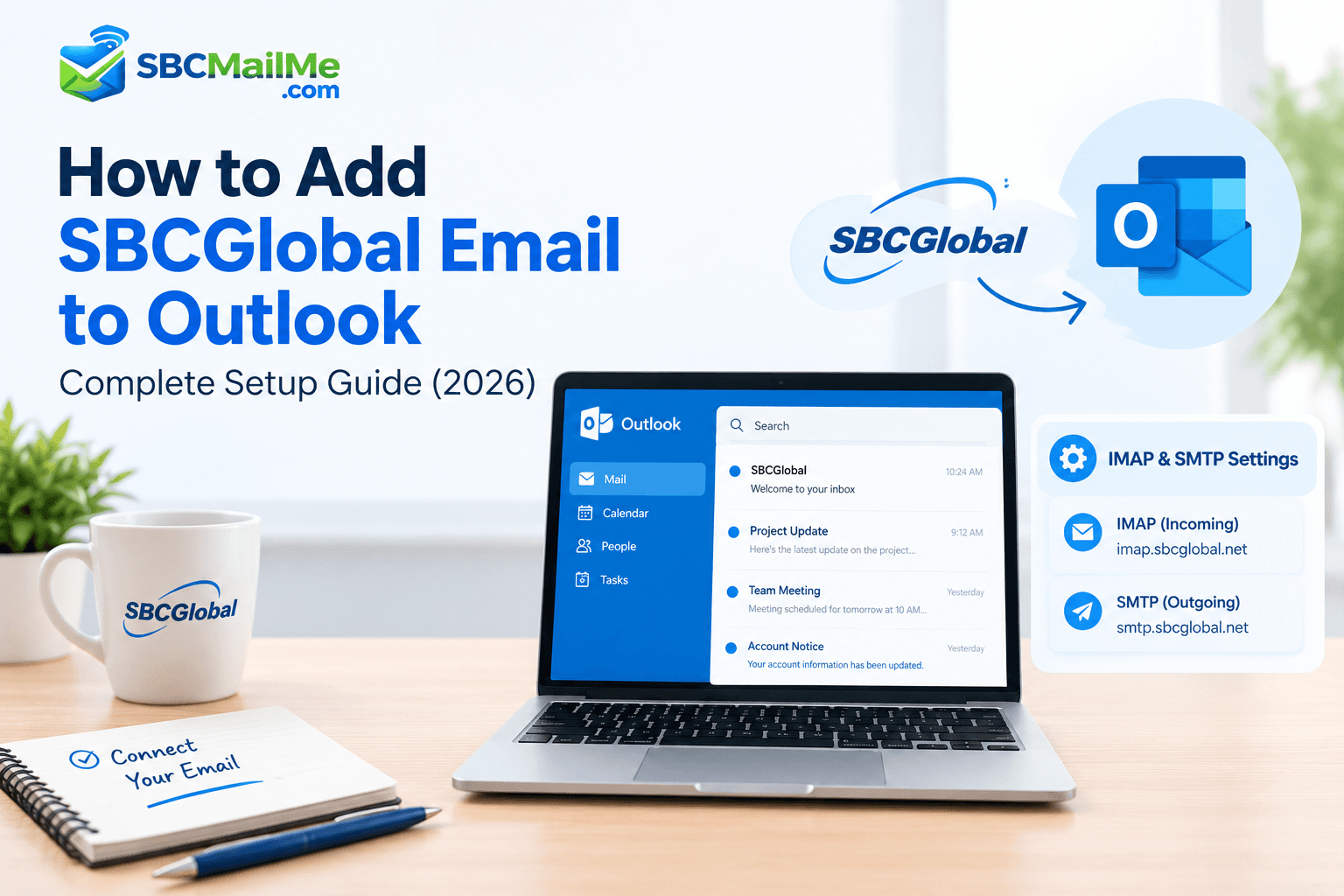
Microsoft Outlook is one of the easiest ways to manage your email, calendar, and contacts in one place. If you use an SBCGlobal email address, you can connect it to Outlook and keep your messages organized from one inbox.
Many users run into setup problems because the wrong mail server settings, outdated login details, or authentication methods are used. This guide walks you through how to add SBCGlobal email to Outlook, how to fix connection issues, and how to choose the right settings for a secure and stable setup.
If you are also trying to access SBCGlobal email on another device, check our guide on How to Access SBCGlobal Email on a New Phone or Computer.
Can You Add SBCGlobal Email to Outlook?
Yes, you can add an SBCGlobal email account to Microsoft Outlook. Most users can complete the setup using the correct IMAP and SMTP settings.
IMAP keeps your mailbox synced across devices, so your inbox stays updated in Outlook as well as on your phone or other email apps.
- Your full SBCGlobal email address
- Your account password
- The latest version of Outlook
- The correct email server settings
SBCGlobal Email Settings for Outlook
Use the correct incoming and outgoing server settings before you begin setup.
| Setting | Details |
|---|---|
| Account Type | IMAP |
| Incoming Mail Server | imap.mail.att.net |
| Incoming Port | 993 |
| Incoming Encryption | SSL/TLS |
| Outgoing Mail Server | smtp.mail.att.net |
| Outgoing Port | 465 |
| Outgoing Encryption | SSL/TLS |
| Username | Your full SBCGlobal email address |
| Password | Your email password or secure mail key if required |
These settings allow Outlook to communicate with SBCGlobal mail servers correctly. If you want to understand how sending settings work behind the scenes, read SMTP Settings Explained.
How to Add SBCGlobal Email to Outlook Automatically
The automatic setup method is usually the easiest way to add your mailbox.
Here are the steps:
1. Open Microsoft Outlook
Open Outlook on your computer. If this is your first time setting it up, the account setup screen may appear automatically.
2. Add Your SBCGlobal Account
Follow these instructions:
- Click File.
- Select Add Account.
- Enter your full SBCGlobal email address.
- Click Connect.
Outlook will try to detect the correct settings automatically.
3. Enter Your Password
When Outlook asks for your password, type the correct one for your SBCGlobal account. Make sure your email address is entered exactly as it appears and that Caps Lock is not active.
- Use your full SBCGlobal email address
- Double-check for typing errors
- Make sure Caps Lock is off
If Outlook continues rejecting your password, reset it through the official recovery process and then try again. You can also review Reset Your Mail Password for more help.
4. Complete the Setup
Once Outlook verifies your account, you can finish registration and let the app sync your messages.
- Click Done.
- Restart Outlook if needed.
- Wait a few moments for your inbox to sync.
Your SBCGlobal account should appear in Outlook after the sync is complete.
How to Manually Configure SBCGlobal Email in Outlook
If Outlook cannot detect your account automatically, add it manually using IMAP settings.
1. Open Outlook Account Settings
Open Outlook and go to File → Add Account. Enter your SBCGlobal email address, then choose Advanced options and select Let me set up my account manually.
2. Choose IMAP
Select the manual account type and choose IMAP to continue the setup.
3. Enter Incoming Mail Settings
Use the following incoming settings:
- Incoming Server: imap.mail.att.net
- Port: 993
- Encryption: SSL/TLS
Use your full SBCGlobal email address as the username.
4. Enter Outgoing Mail Settings
Use these outgoing settings:
- Outgoing Server: smtp.mail.att.net
- Port: 465
- Encryption: SSL/TLS
- Enable My outgoing server (SMTP) requires authentication
- Use the same settings as your incoming mail server
After entering the details, click Next and then Done.
Why Is SBCGlobal Email Not Connecting to Outlook?
If Outlook still will not connect, the problem is usually caused by one of the following:
- Incorrect password
- Wrong IMAP or SMTP settings
- Authentication problems
- Outdated Outlook version
- Internet connection issues
If your account is not working properly, review our troubleshooting guide on SBCGlobal Email Not Working.
What Is a Secure Mail Key?
A secure mail key is an additional password used for some email programs and apps. It acts as a separate access key when your main password is not accepted or when the app needs extra authentication.
- Your regular password does not work in Outlook
- Your browser login works but the app does not
- Your email app does not support modern authentication
A secure mail key helps protect your mailbox while still allowing a trusted app to access it safely.
How to Fix SBCGlobal Email Setup Problems
If Outlook still fails to connect, try these fixes in order.
1. Verify Your Password
Incorrect login details are one of the most common reasons Outlook cannot connect to an SBCGlobal account.
- Check that you are using your full email address
- Confirm the password is correct
- Make sure Caps Lock is off
- Remove any extra spaces copied from an email or note
If you cannot remember your password or your account is locked, review Forgot Your Email Password to recover it securely.
2. Check IMAP and SMTP Settings Again
A small mistake in the server information can block Outlook from connecting.
| Setting | Value |
|---|---|
| Incoming Mail Server | imap.mail.att.net |
| Incoming Port | 993 |
| Incoming Encryption | SSL/TLS |
| Outgoing Mail Server | smtp.mail.att.net |
| Outgoing Port | 465 |
| Outgoing Encryption | SSL/TLS |
Wrong port numbers or encryption settings can trigger connection errors, repeated password prompts, or failed sends. For a better understanding of outgoing email configuration, read SMTP Settings Explained.
3. Check for a Secure Mail Key
Some users can log in online but cannot use Outlook because the app requires stronger security verification.
- Your main password is rejected in the app
- The app keeps asking for login details
- Your app does not support modern sign-in methods
4. Update Microsoft Outlook
Using an outdated version of Outlook can create compatibility problems.
Update Outlook regularly to improve:
- Security
- Email synchronization
- Authentication support
- Application stability
To check for updates:
1. Open Outlook.
2. Go to File.
3. Select Office Account.
4. Click Update Options.
5. Choose Update Now.
5. Check Outlook Offline Mode
Sometimes Outlook stops receiving emails because it is working offline.
To check:
- Open Outlook.
- Go to Send/Receive.
- Check whether Work Offline is enabled.
- Disable it if necessary.
After reconnecting, Outlook should start synchronizing emails.
6. Remove and Re-add the Account
If your settings are corrupted, removing the account and adding it again can restore the connection.
- Open Outlook settings
- Select the SBCGlobal account
- Remove it from Outlook
- Restart Outlook
- Add the account again using the IMAP setup
Before removing an account, make sure important emails are stored safely.
SBCGlobal Email Not Syncing in Outlook? Try These Fixes
Sometimes Outlook connects successfully but emails do not update.
Common reasons include:
- Synchronization errors
- Incorrect folder settings
- Network problems
- Mailbox storage issues
Try these solutions:
Restart Outlook
Close Outlook completely.
Wait a few seconds and open it again.
Temporary connection problems are often resolved after restarting the application.
Check Email Folders
Sometimes new emails may not appear in the Inbox because they are moved automatically.
Check:
- Spam/Junk folder
- Archive folder
- Deleted folder
- Custom folders
Check Mailbox Storage
A full mailbox can prevent new messages from arriving.
Remove unnecessary emails and clear deleted items if required.
IMAP vs POP3: Which Is Better for SBCGlobal Email?
When configuring SBCGlobal email in Outlook, you may see both IMAP and POP3. IMAP is usually the better option for most users because it keeps your emails synced across devices.
| Feature | IMAP | POP3 |
|---|---|---|
| Email synchronization | Yes | Limited |
| Multiple devices | Recommended | Less suitable |
| Keeps messages on server | Yes | Usually downloads messages |
| Folder sync | Yes | Limited |
| Best for modern users | Yes | Mostly older setups |
For most SBCGlobal users, IMAP is the correct and recommended choice.
How to Add SBCGlobal Email to Outlook on Mac
The process for Outlook on Mac is similar.
Follow these steps:
1. Open Microsoft Outlook.
2. Go to Tools.
3. Select Accounts.
4. Click Add Email Account.
5. Enter your SBCGlobal email address.
6. Select manual IMAP configuration.
7. Enter the incoming and outgoing server settings.
8. Save the changes.
After successful verification, Outlook will begin syncing your emails.
How to Keep Your SBCGlobal Email Secure in Outlook
Email security is important because your mailbox may contain personal information, conversations, and account recovery details.
Follow these security practices:
Use a Strong Password
Create a password that:
- Contains a combination of letters, numbers, and symbols
- Is not reused on other websites
- Is difficult to guess
Update Your Password Regularly
Changing your password periodically can help protect your account.
For more information, read our guide on how to change your email password safely.
Avoid Suspicious Email Links
Do not open unknown attachments or click suspicious links asking for login information.
Keep Outlook Updated
Security updates help protect your email application from vulnerabilities.
Frequently Asked Questions
Final Thoughts
Adding SBCGlobal email to Outlook becomes easier when the correct server settings and authentication methods are used.
The most important configuration details are:
- IMAP server: imap.mail.att.net
- IMAP port: 993
- SMTP server: smtp.mail.att.net
- SMTP port: 465
- SSL encryption enabled
If Outlook does not connect, review your password, server settings, authentication method, and secure mail key requirements.
For more help with SBCGlobal email issues, explore our complete resources covering account recovery, password reset, login help, email security, and troubleshooting solutions.